
Description
Sweepify – Images Cleaner gives you a safe, professional media management dashboard to reclaim disk space and keep your WordPress media library clean — without ever risking your live content.
Every cleanup action goes through a protected trash first. You can restore any file at any time before permanently deleting it.
Features
- Unused image detection — scans posts, pages, widgets, menus, theme mods, featured images, and site options
- Orphaned media detection — finds attachment records without files (phantom) and files on disk without attachment records (untracked)
- Duplicate detection — identifies duplicate files using MD5 hash comparison
- Oversized image flagging — configurable file size (MB) and pixel dimension thresholds
- Obsolete thumbnail detection — finds thumbnail sizes no longer registered in your theme
- Elementor deep scan — scans Elementor JSON data, backgrounds, galleries, and templates (requires Elementor)
- WooCommerce scanning — scans product images, galleries, variations, and category thumbnails (requires WooCommerce)
- ACF field scanning — scans image, file, and gallery fields (requires Advanced Custom Fields)
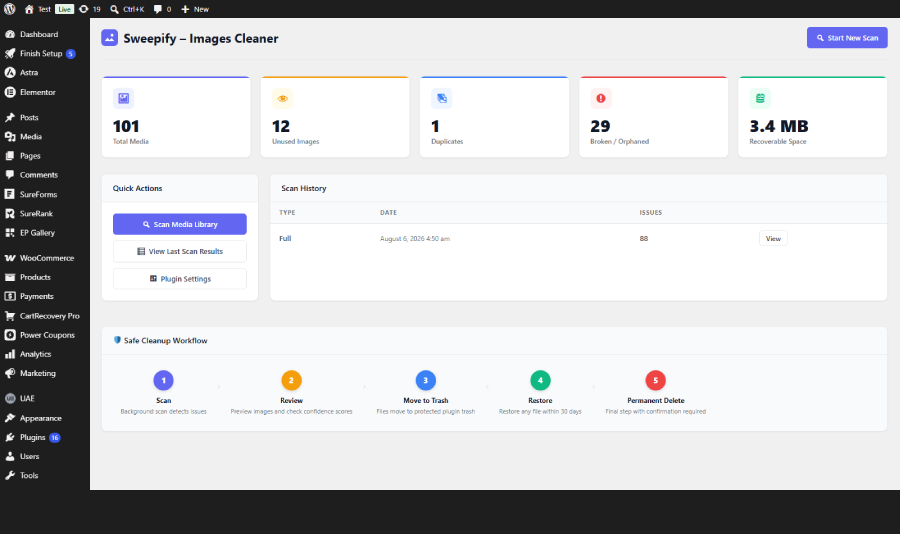
- Safe cleanup workflow — Scan Review Trash Restore Permanent Delete
- Plugin-controlled trash — trashed files are moved to your uploads directory and can be restored at any time
- Ignore list — exclude specific attachments, file paths, or folders from all scans
- Background processing — scans run in small chunks via WP-Cron to avoid timeouts on large sites
- Live progress bar — real-time scan progress via REST API polling
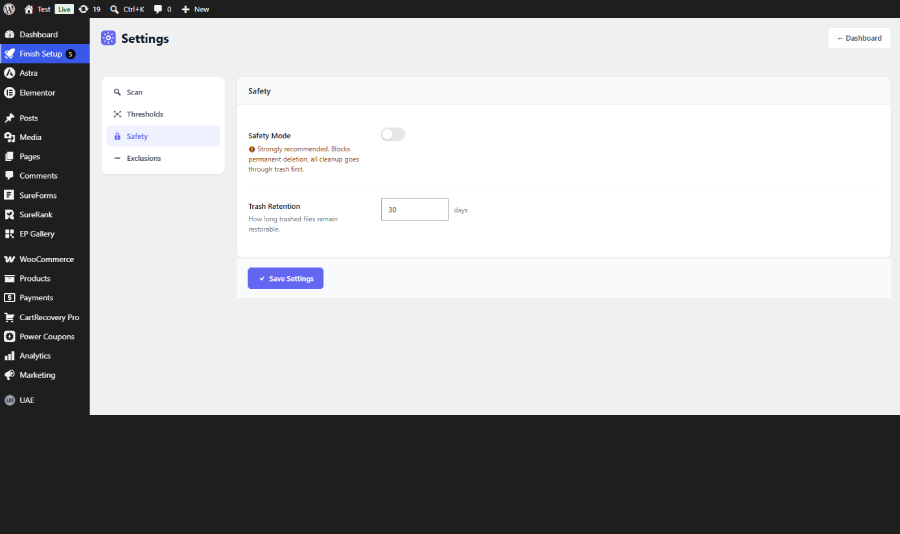
- Safety Mode — prevents accidental permanent deletion; all cleanup goes through trash first
How It Works
- Go to Sweepify in your WordPress admin menu
- Click Start New Scan
- Wait for the background scan to complete (progress bar shows live status)
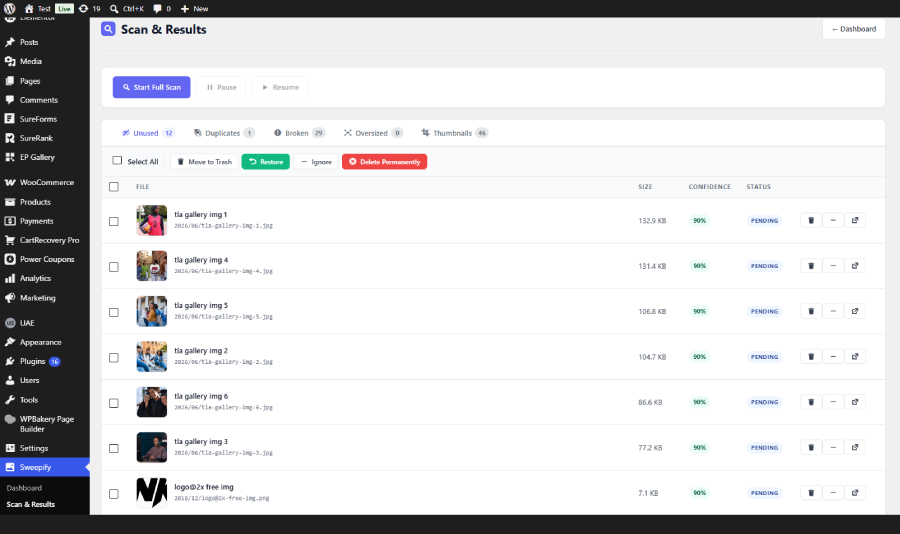
- Review results by category: Unused, Duplicates, Broken, Oversized, Thumbnails
- Select files and click Move to Trash
- Restore any file from trash if needed
- Only permanently delete when you are confident
Safety First
Sweepify never permanently deletes anything automatically. Every file goes through a protected trash folder inside your uploads directory (uploads/wpic-trash/). You can restore any trashed file at any time.
Permanent deletion requires a timed confirmation token and, if Safety Mode is enabled, an extra confirmation step in Settings.
Screenshots
Installation
Automatic Installation
- Go to Plugins > Add New in your WordPress admin
- Search for Sweepify
- Click Install Now, then Activate
- Go to Sweepify in your admin menu to run your first scan
Manual Installation
- Download the plugin zip file
- Go to Plugins > Add New > Upload Plugin
- Upload the zip file and click Install Now
- Click Activate Plugin
- Go to Sweepify in your admin menu
After Activation
- Navigate to Sweepify in the left admin menu
- You will see the Dashboard with your current media library statistics
- Click Start New Scan to begin
- The scan runs in the background — you can leave the page and come back
- When complete, click View Last Scan Results to review detected issues
- Use the tabs to filter by issue type: Unused, Duplicates, Broken, Oversized, Thumbnails
- Select items and use the bulk action buttons to Move to Trash, Restore, Ignore, or Delete Permanently
Configuration
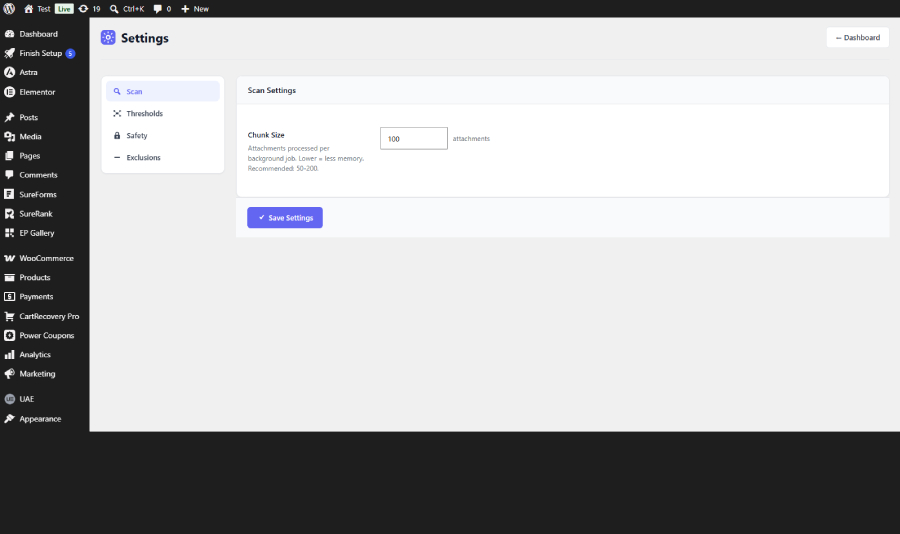
Go to Sweepify > Settings to configure:
- Chunk Size — how many attachments are processed per background job (default: 100)
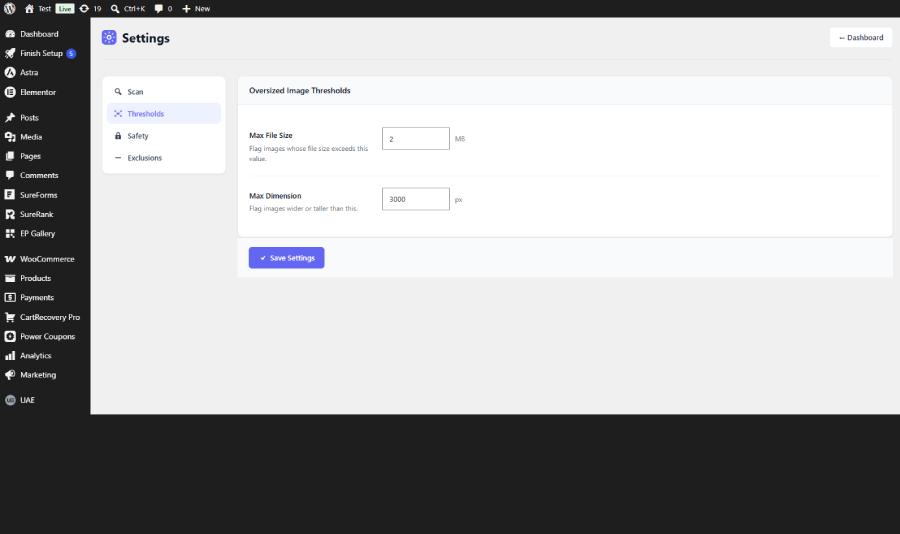
- Max File Size — file size threshold for oversized detection (default: 2 MB)
- Max Dimension — pixel dimension threshold for oversized detection (default: 3000px)
- Safety Mode — toggle to require extra confirmation before permanent deletion (default: ON)
- Trash Retention — how many days trashed files remain restorable (default: 30 days)
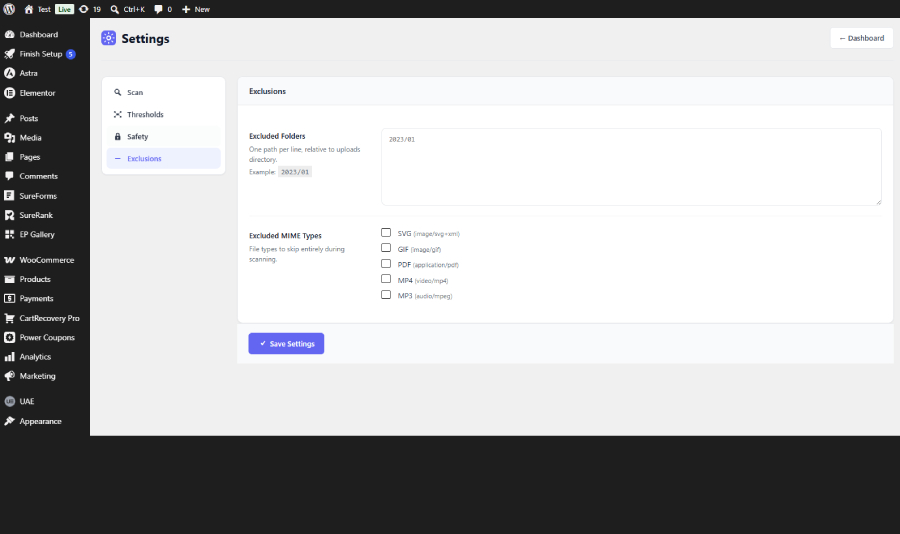
- Excluded Folders — folder paths (relative to uploads) to skip during scanning
- Excluded MIME Types — file types to skip entirely (SVG, GIF, PDF, MP4, MP3)
FAQ
-
Will this plugin delete my images automatically?
-
Never. Every action requires your explicit review and confirmation. Files are moved to a protected trash folder first and can be restored at any time.
-
Is it safe to use on large sites?
-
Yes. Scans run in small background chunks to avoid memory exhaustion and request timeouts. You can configure the chunk size in Settings.
-
Where do trashed files go?
-
Trashed files are moved to
wp-content/uploads/wpic-trash/and remain there until you permanently delete them or the retention period expires. -
Can I restore trashed files?
-
Yes. Go to the Scan Results page, switch to the Trash tab, select the files you want to restore, and click Restore.
-
Does it work with Elementor?
-
Yes. If Elementor is active, the scanner will deep-scan all Elementor page data, templates, backgrounds, and galleries to ensure those images are not incorrectly flagged as unused.
-
Does it work with WooCommerce?
-
Yes. If WooCommerce is active, the scanner will scan product images, product galleries, variation images, and category thumbnails.
-
Does it work with Advanced Custom Fields (ACF)?
-
Yes. If ACF is active, the scanner will detect images stored in ACF image, file, and gallery fields and exclude them from being flagged as unused.
-
What is Safety Mode?
-
Safety Mode is enabled by default. When active, it blocks permanent deletion so all cleanup must go through the trash first. You can disable it in Settings > Safety if you want to allow direct permanent deletion after trashing.
-
What does the confidence score mean?
-
Each detected item has a confidence score (0–100%) indicating how certain the scanner is that the file is safe to remove. Higher scores mean the file is more likely genuinely unused. Always review before deleting.
-
Will it affect my site performance during a scan?
-
No. Scans run in the background via WP-Cron in small chunks. Your site remains fully functional during a scan.
Reviews
There are no reviews for this plugin.
Contributors & Developers
“Sweepify – Images Cleaner” is open source software. The following people have contributed to this plugin.
Contributors


Translate “Sweepify – Images Cleaner” into your language.
Interested in development?
Browse the code, check out the SVN repository, or subscribe to the development log by RSS.
Changelog
1.0.0
- Initial release.
- Unused, orphaned, duplicate, oversized, and thumbnail scanning.
- Background processing with live progress bar.
- Safe trash workflow with restore capability.
- Elementor, WooCommerce, and ACF integration.
- Ignore list for attachments, paths, and folders.
- Safety Mode and timed confirmation for permanent deletion.